
Please open a web browser on a PC connected to the system. Enter the following address:
http://minivsat.kvh (or try 192.168.6.1 if that does not work) in the address bar.
Next, open the Command Prompt in Windows:
- Type “command prompt” into the Start menu to search for it. You can also type “cmd” (the short name of the executable that runs the Command Prompt) if you prefer. Then choose RUN as administrator, then press the Enter key to open it.
- Type the following: ping 192.168.1.1
- Press the Enter key.
- You should get a result similar to the below:
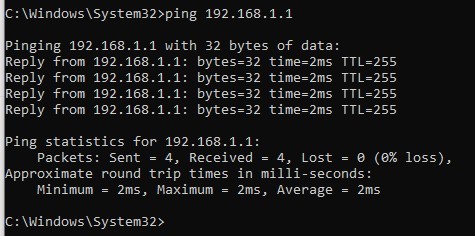
NOTE: Make sure you can reach the modem 192.168.1.1 before proceeding.
If no response, you may have to add route (Copy and paste below in command line):
route add 192.168.1.0 mask 255.255.255.0 192.168.5.1
And then re-check to see if 192.168.1.1 can be pinged successfully
Once the ping from 192.168.1.1 is working, then proceed to open a browser and enter the 192.168.1.1 in the address bar. The modem login will appear. Login credentials are below:
Username – admin
Password – iDirect
Once you are inside the modem, you will click the administration tab and click software and configuration. Below should be displayed.
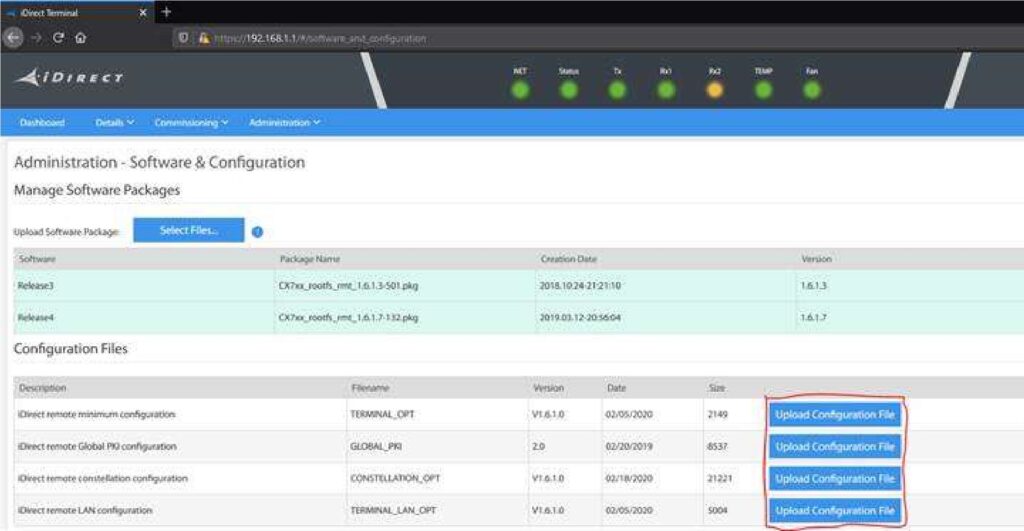
Once on the software and configuration page you will click upload the configuration files that have been unzipped and choose the corresponding file for all 4 files circled in red. Once this is completed, click the reboot terminal button in the upper right-hand corner.
Go back to the command prompt, and ping the 192.168.1.1 again using this command: ping 192.168.1.1 -t
Once pings are completing, return to the webCONTROL page (Main) of the VSat and choose the Support Tab.
Click on the Restart Hardware and choose Restart All.
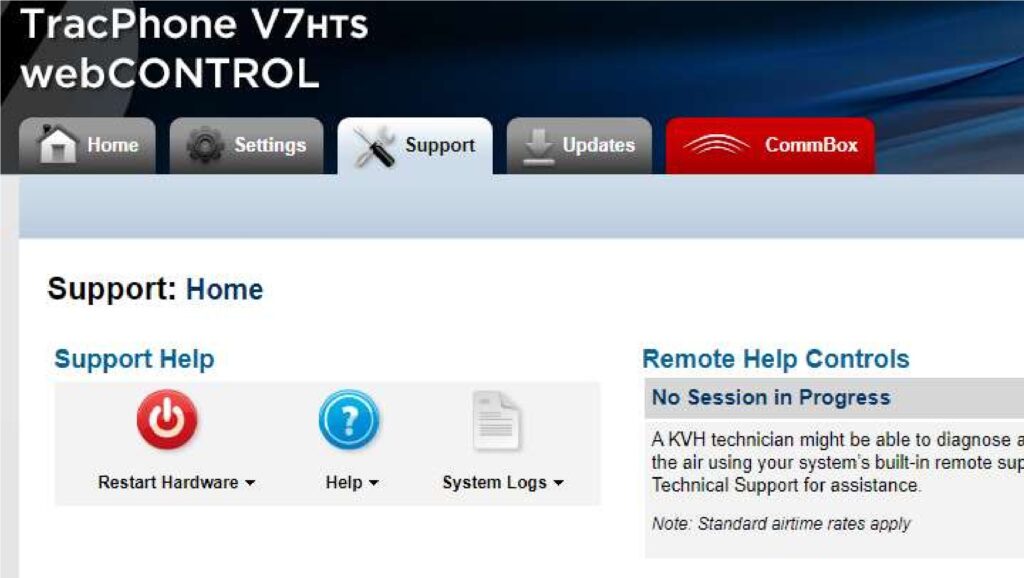
Option files should now be loaded. The terminal now should be able to go online.


